
Client portal help
How to sign in, view and download your invoices, answer quotes and turn on two-factor sign-in. Questions? Call (207) 544-8090 or email billing@smimaine.com.
Signing in
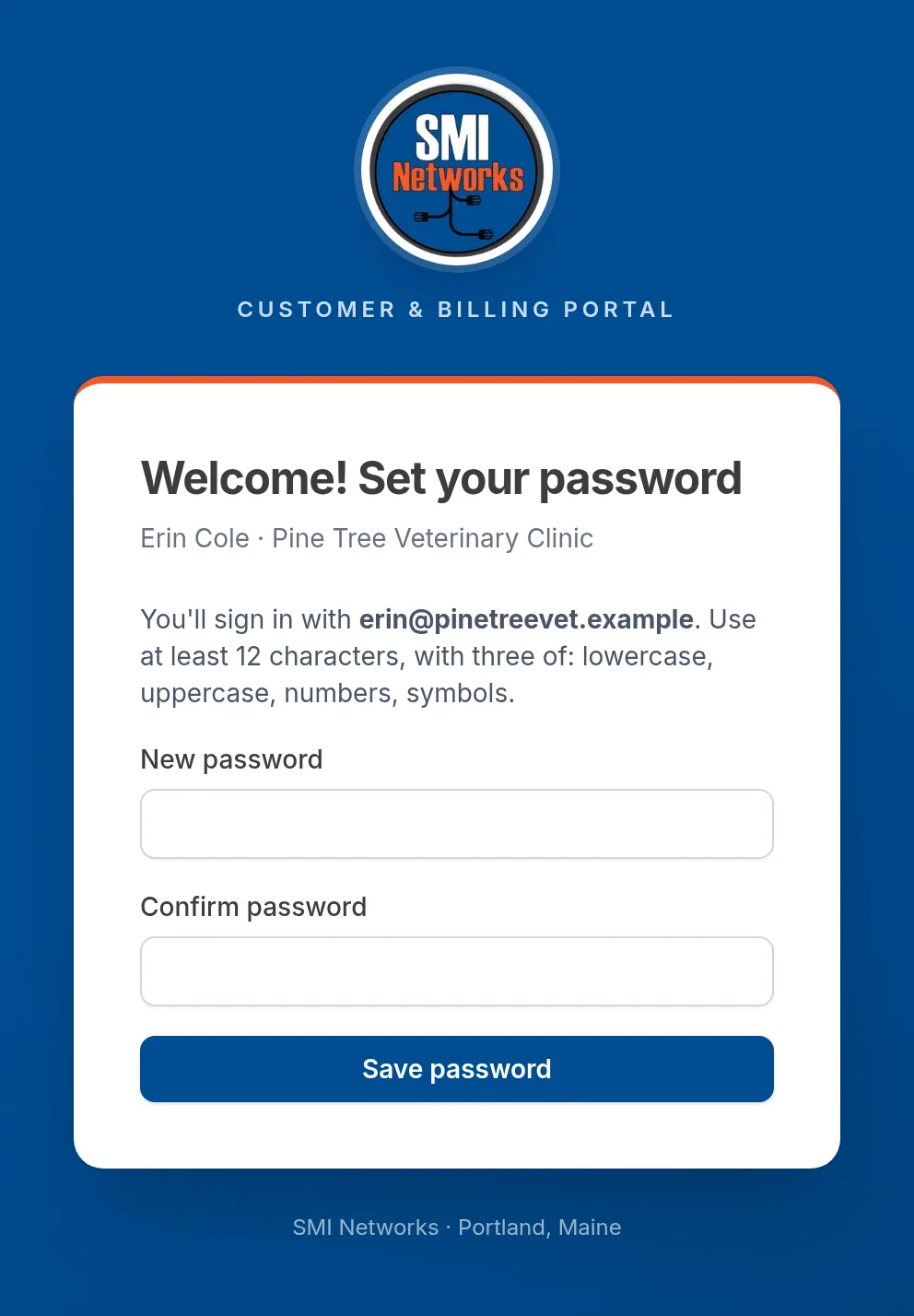
Step 1: SMI Networks emails you a one-time invite link. Open it and choose a password (at least 12 characters). Invite links expire after 7 days.
Step 2: After that, sign in at /portal/login with your email and password.
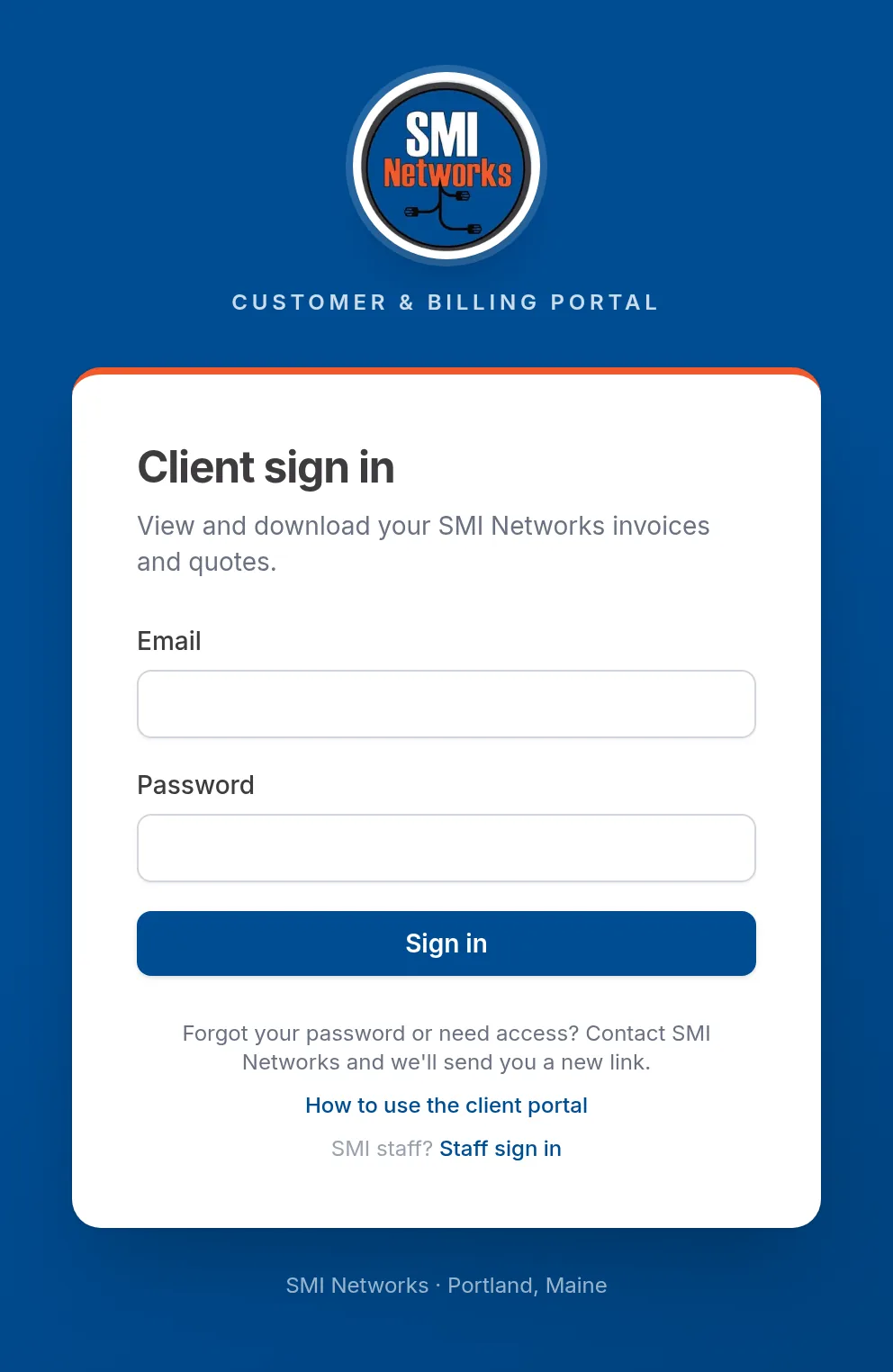
Step 3: Forgot your password? Call or email SMI Networks and we'll send you a reset link (valid 72 hours). After 5 wrong tries sign-in is paused for 15 minutes.
Viewing and downloading invoices
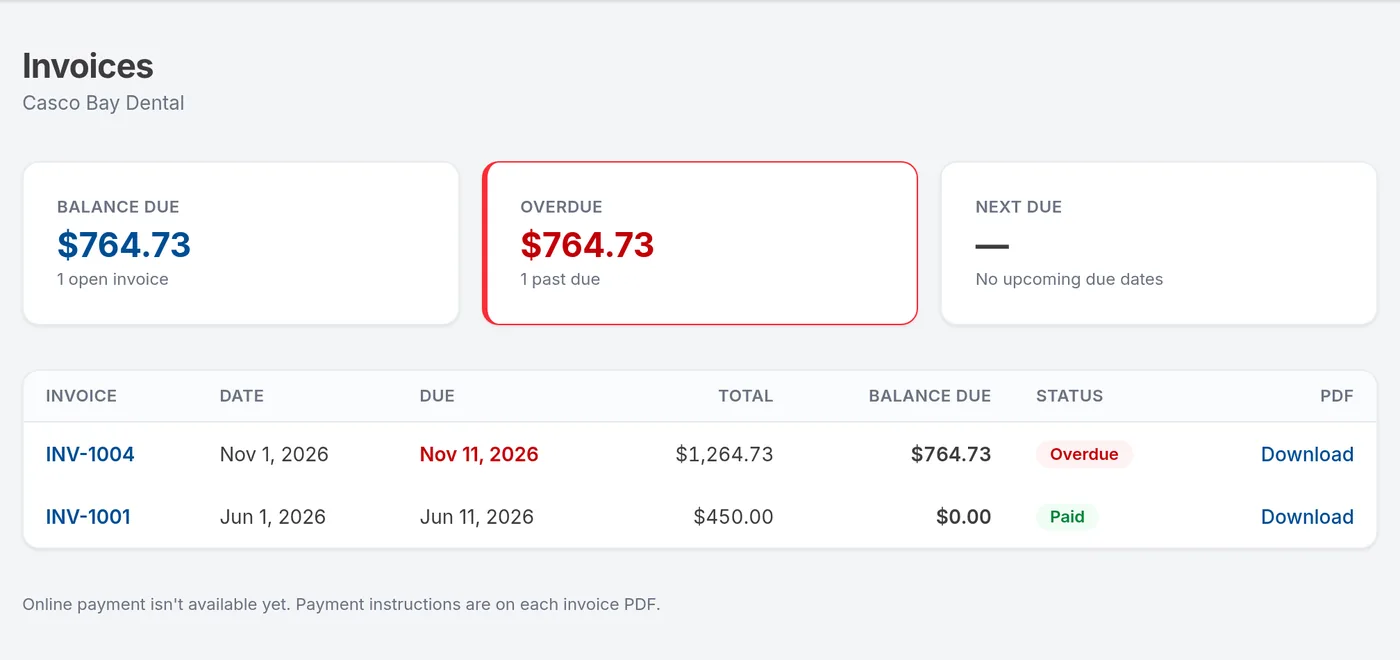
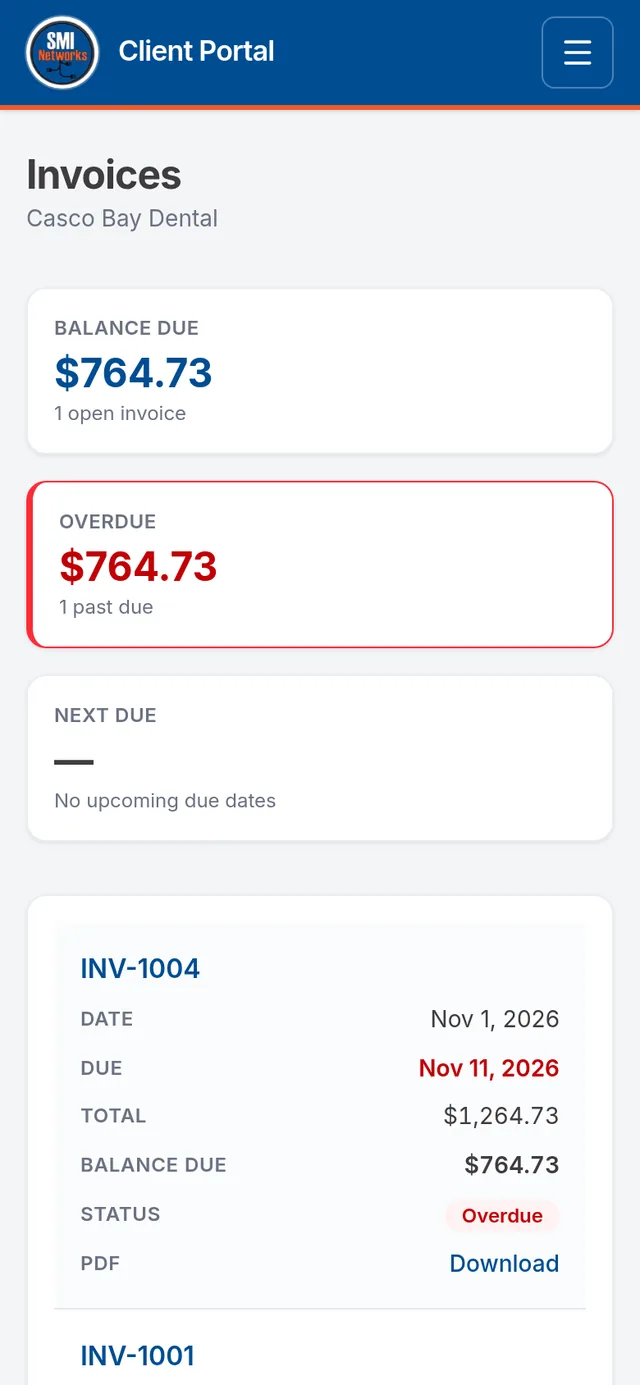
Step 1: Invoices shows your balance due, anything overdue and the next due date, with a list of your invoices.
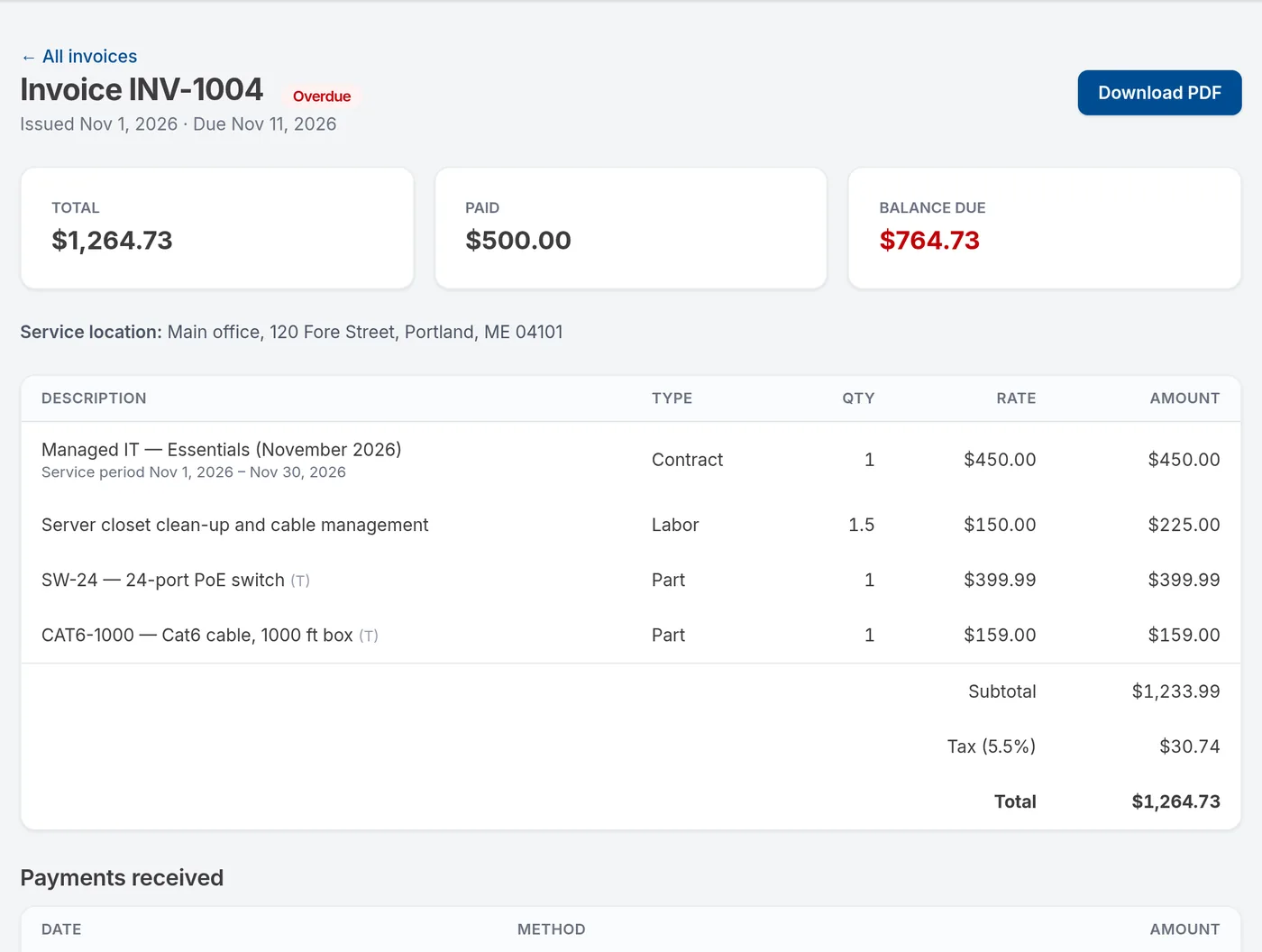
Step 2: Click an invoice number to see its lines, payments and balance.
Step 3: If online payment is set up, click Pay now on an unpaid invoice and pay with a card. The payment usually posts in a few seconds.
Step 4: Click Download PDF for a copy to save, print or forward to your accounts team. When online payment is set up, the PDF also includes a pay link.
Step 5: On a phone, invoices are shown as cards — tap one to open it.
Quotes
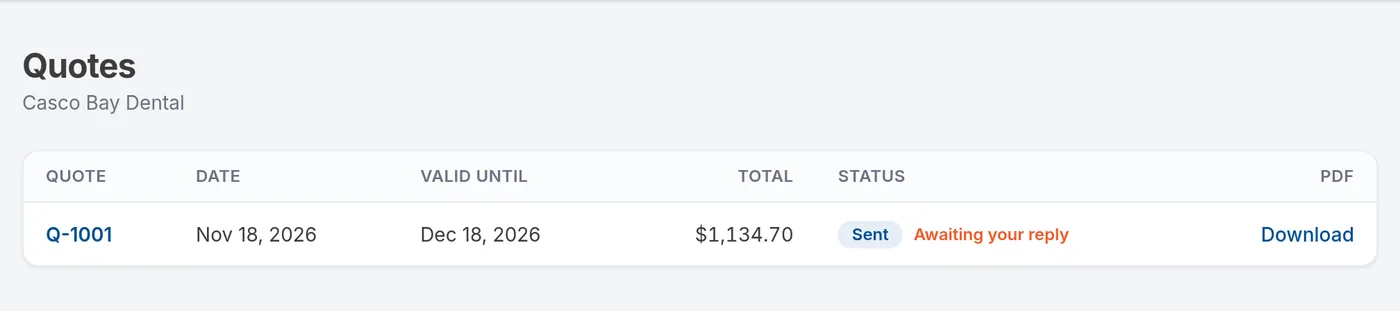
Step 1: Quotes lists the estimates we've sent you.
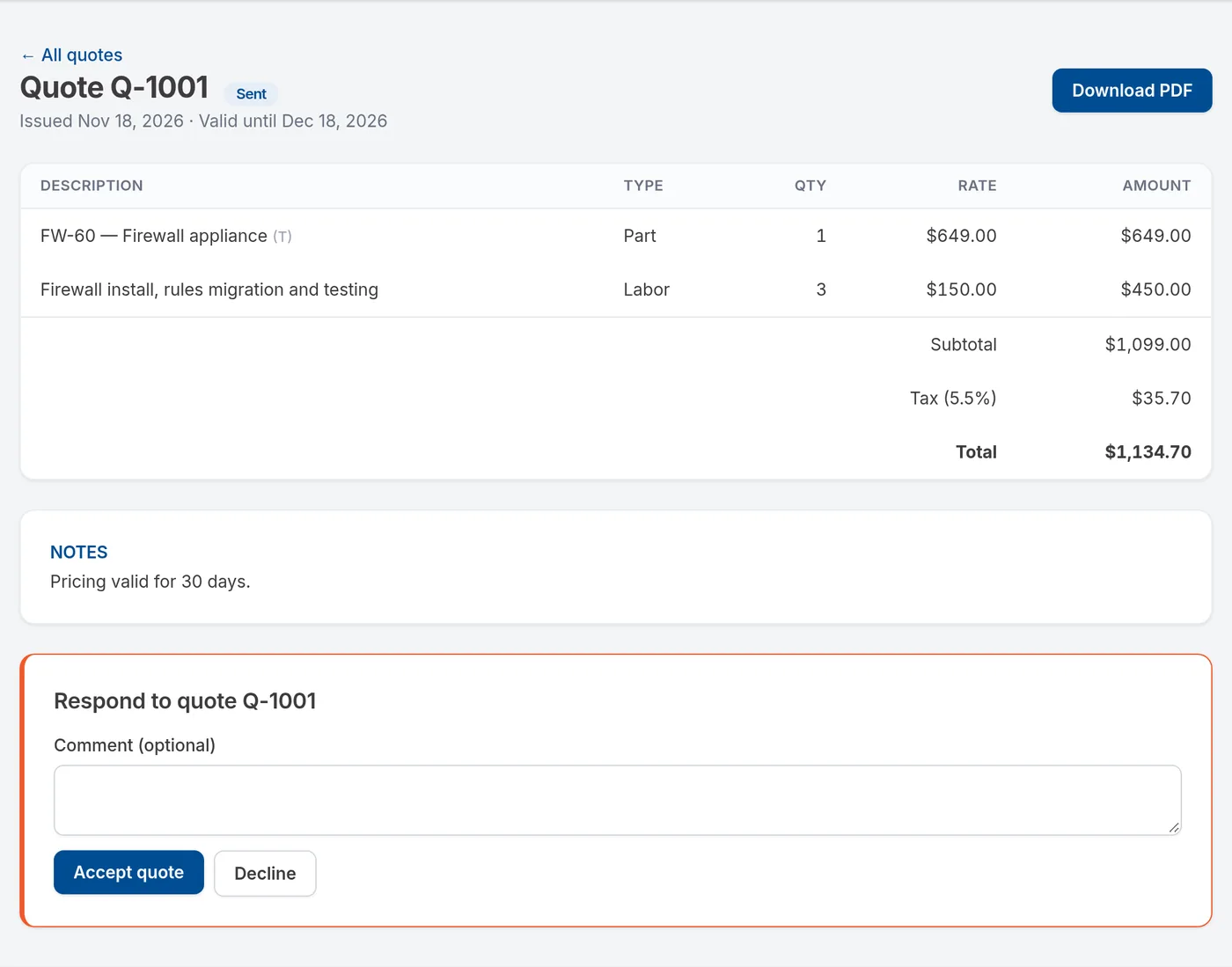
Step 2: Open a quote to read it or download the PDF. Click Accept quote or Decline (you can add a comment) — we're notified straight away.
Opening a ticket
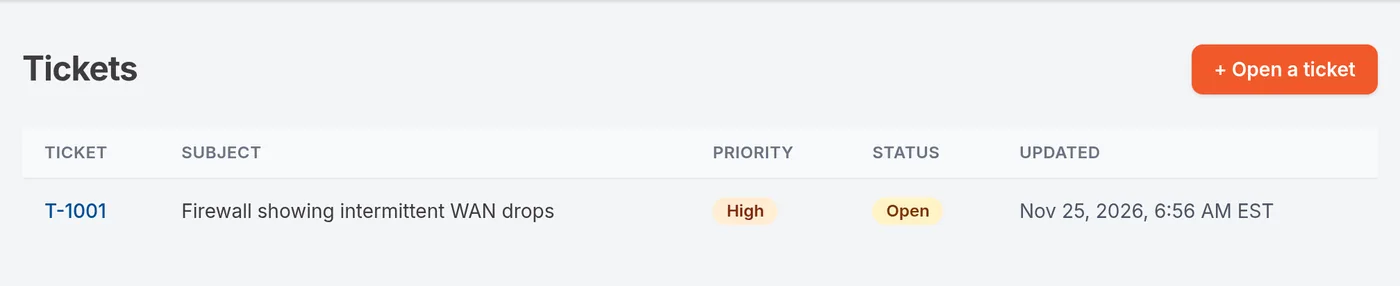
Step 1: Tickets lists the service tickets for your account. Click Open a ticket to tell us what you need help with.
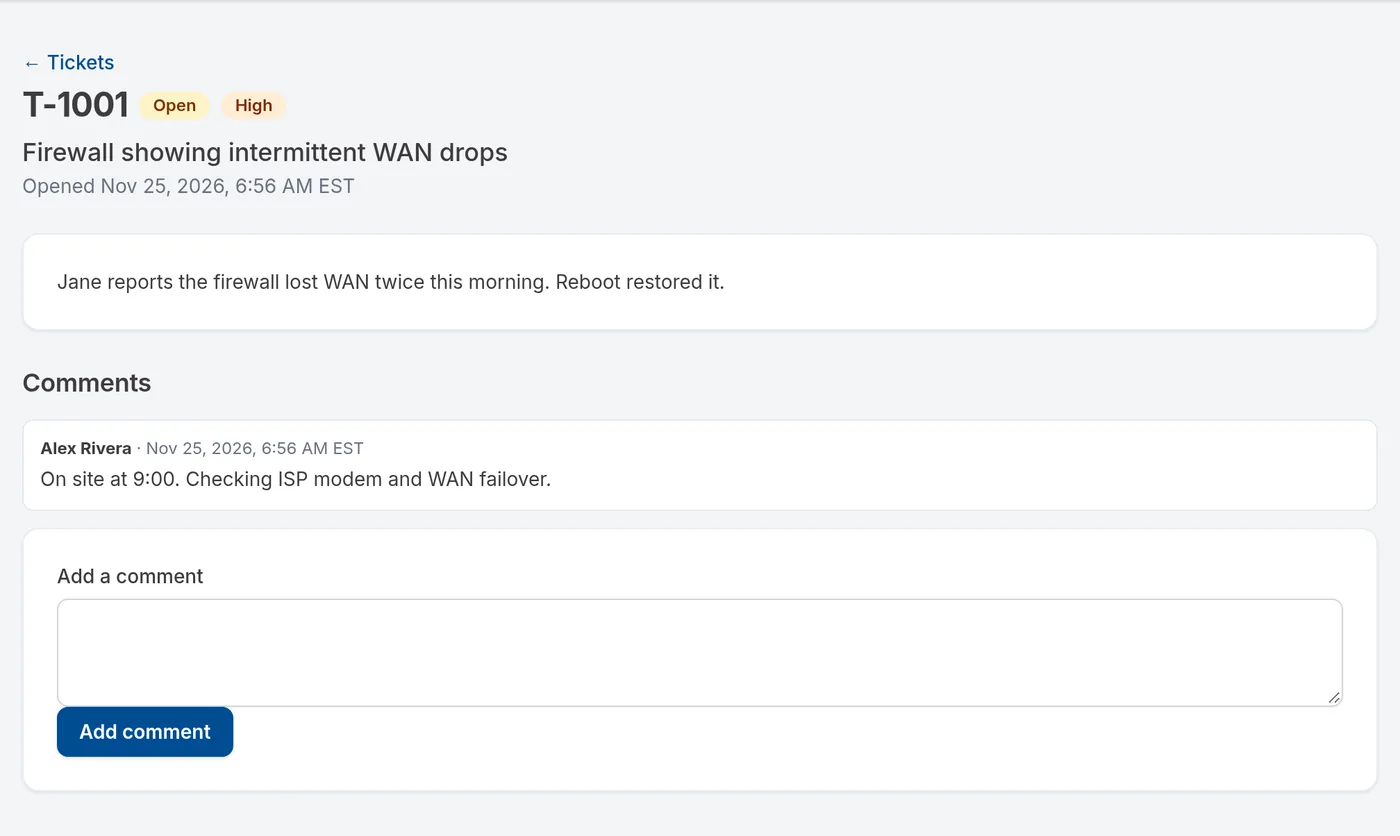
Step 2: Open a ticket to read our replies and add a comment. Internal staff notes are not shown here.
Speed test
Step 1: Open Speed test in the portal menu to check download, upload, ping and jitter from the device you're using.
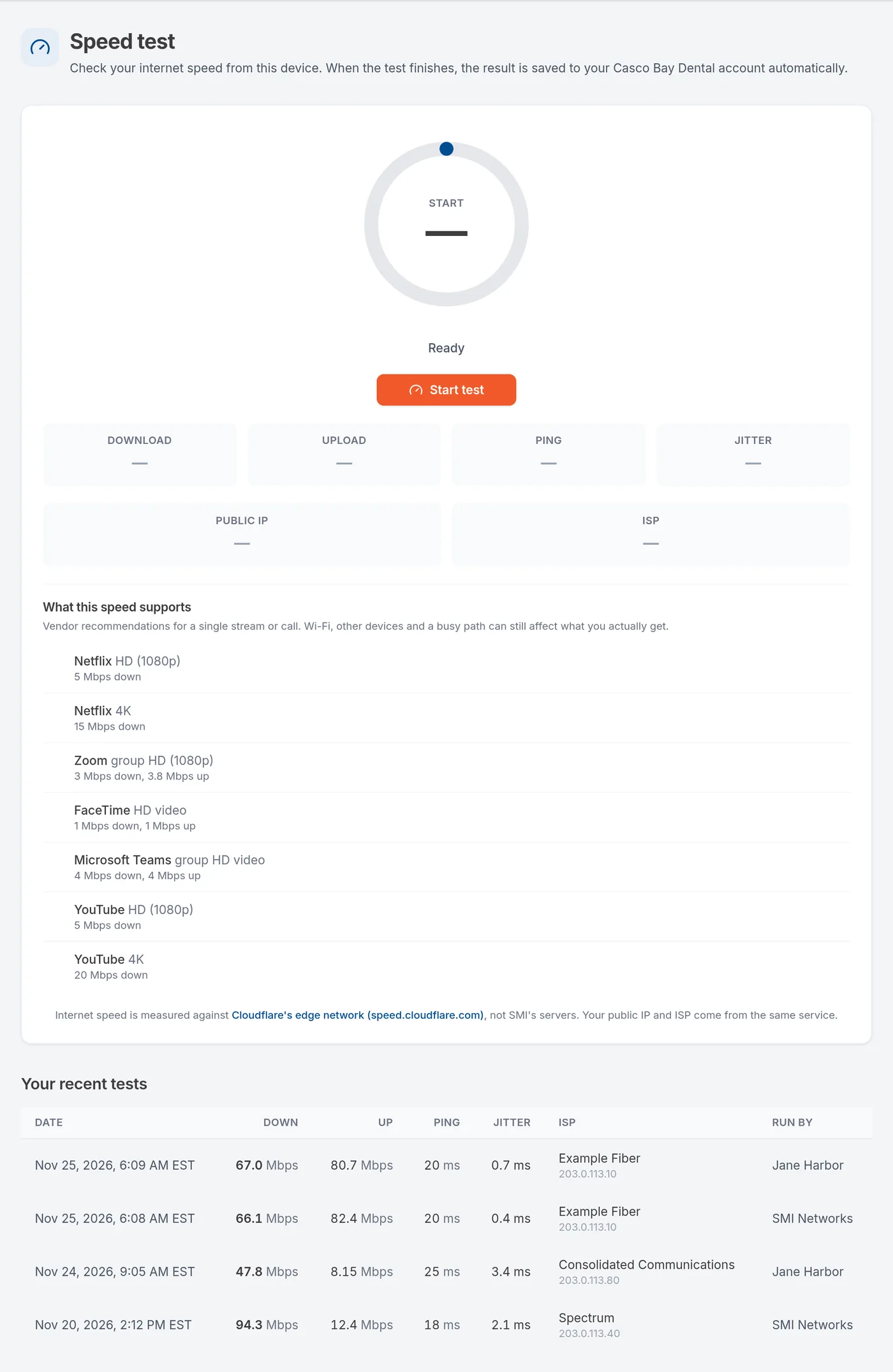
Step 2: Click Start test and wait until it finishes (usually 10–20 seconds). The result is saved to your account automatically and listed under Your recent tests.
Step 3: The test uses Cloudflare's network, so it measures your internet connection — not the path to SMI's servers. Your public IP and ISP are shown when available.
Step 4: What this speed supports shows whether the result meets published recommendations for Netflix, Zoom, FaceTime, Microsoft Teams and YouTube. A green check means both the download and upload figures are met.
Two-factor sign-in (optional)
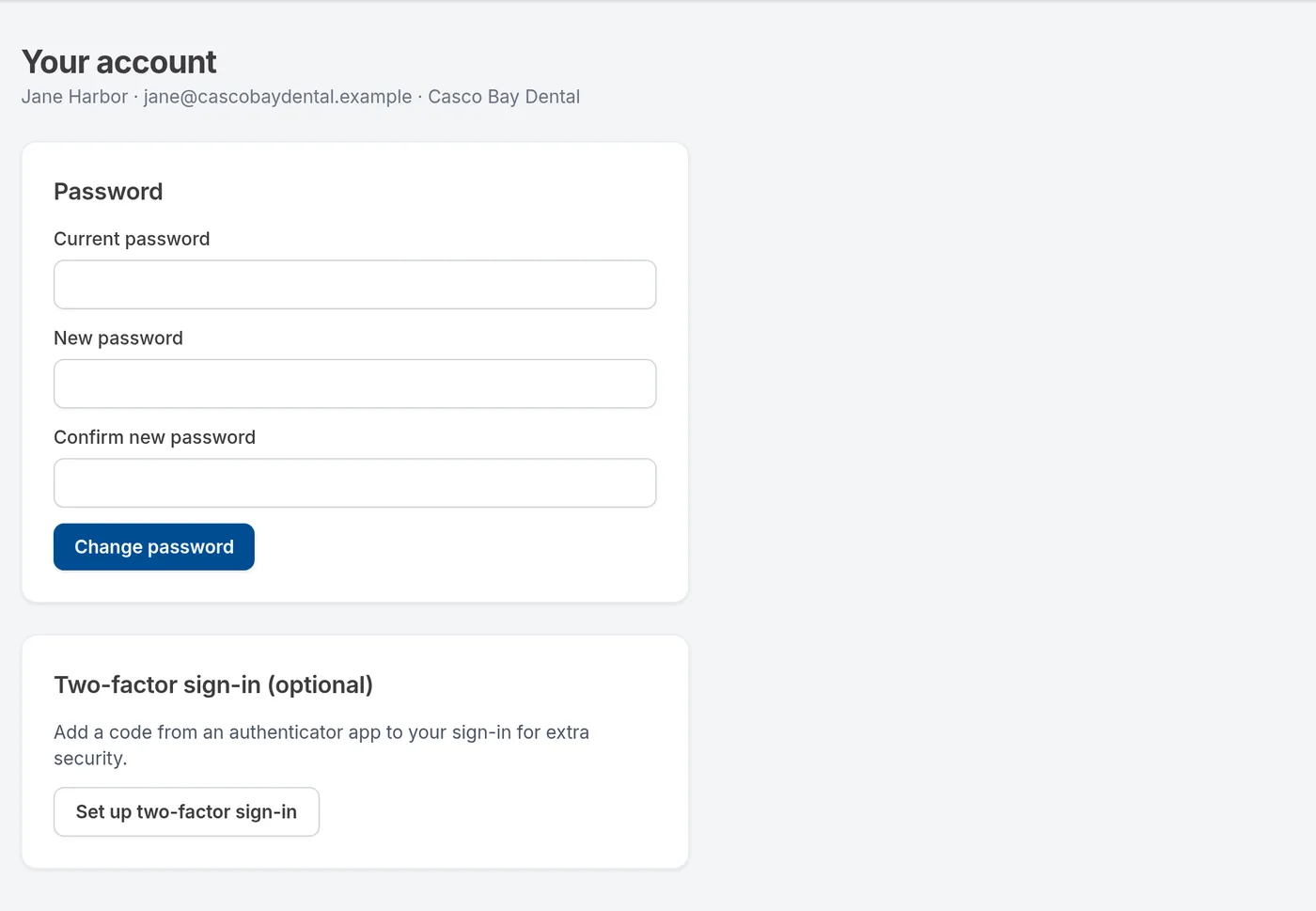
Step 1: For extra security, open Account and set up two-factor sign-in: scan the QR code with an authenticator app and enter the 6-digit code.
Step 2: After that you'll be asked for a code each time you sign in. If you lose your phone, contact SMI Networks to reset it.